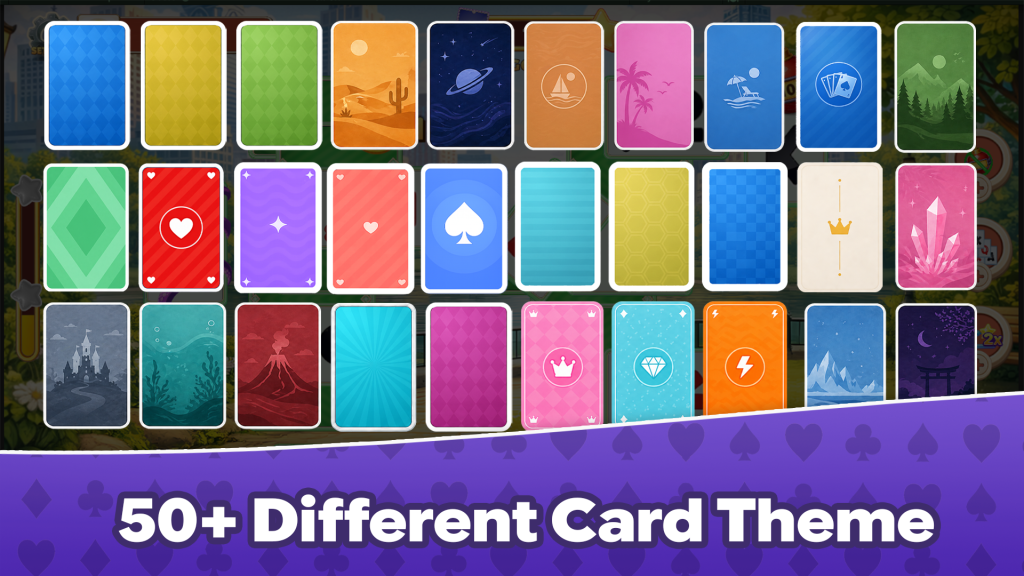
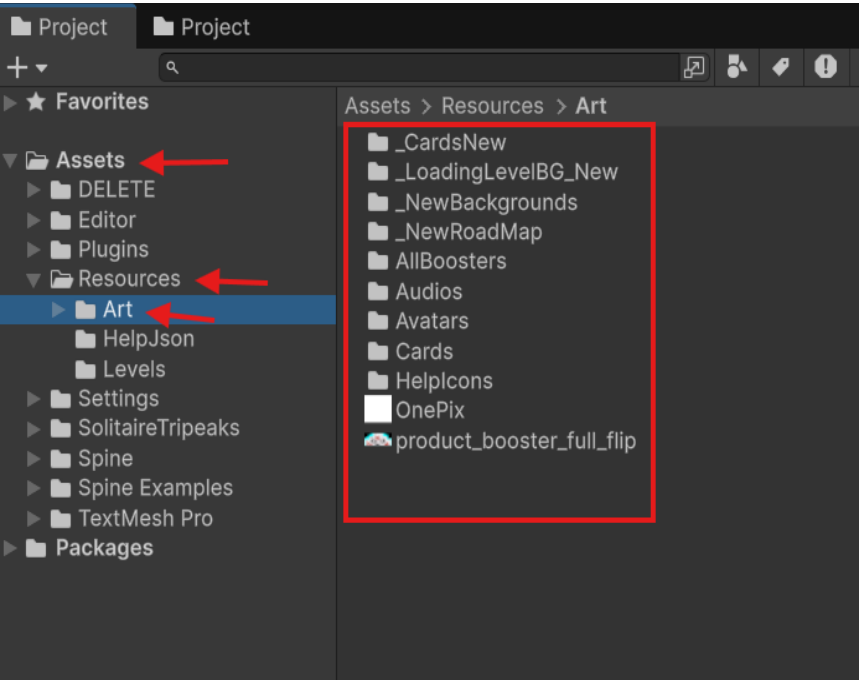
Open the Art folder and paste your artwork files there
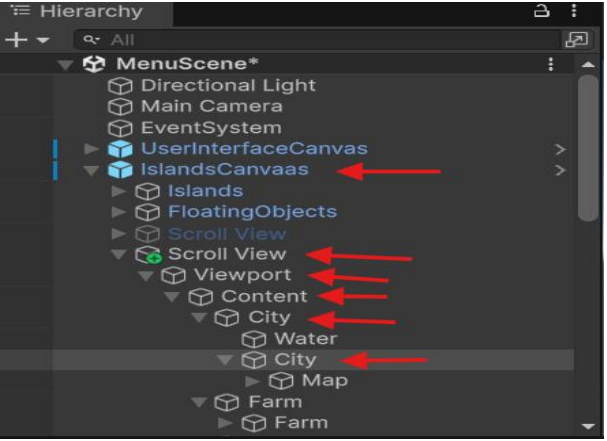
Open the Game Object you want to modify.
- If you want the changes to apply to the prefab, you must open the prefab itself and make the modifications there.
- If you only want the changes to affect the current scene, you can edit the object directly in the scene without modifying the prefab.
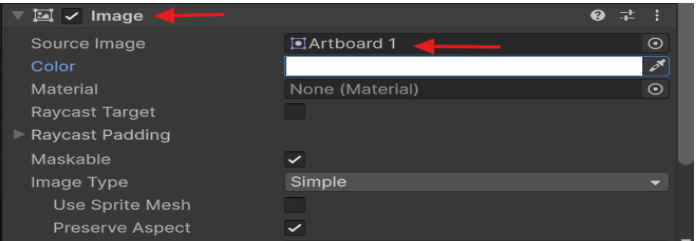
in the Image section, you can drag your file here, or select the field and search for your image.
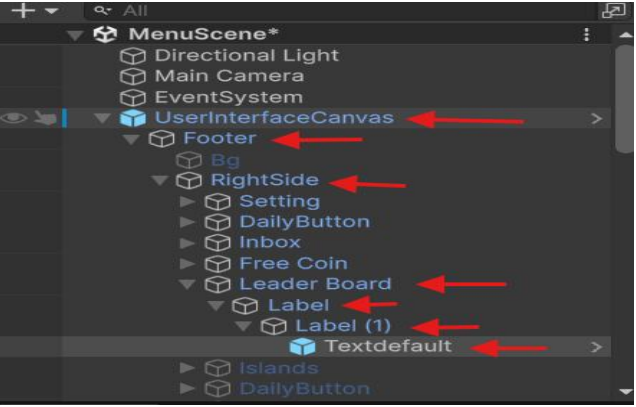
Locate the object you want to modify, and click on its text to change the font Example:
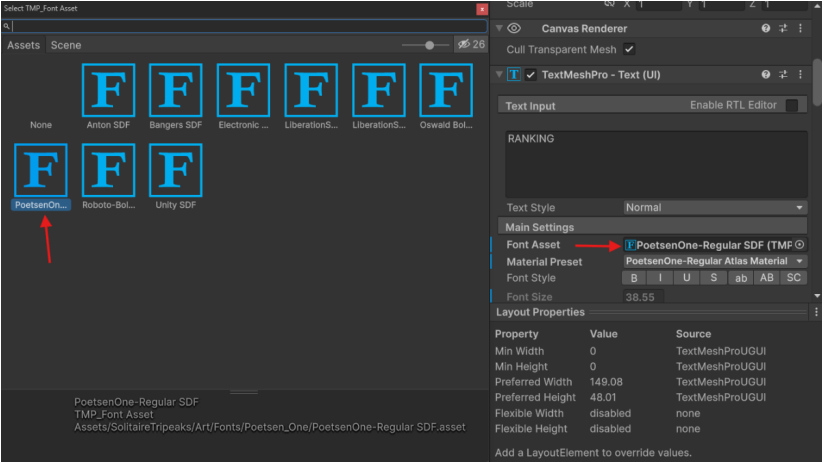
In the Inspector, open Font Asset and pick the font you want from the list.
To import a new font, follow these steps:
Drag your custom font into Font file
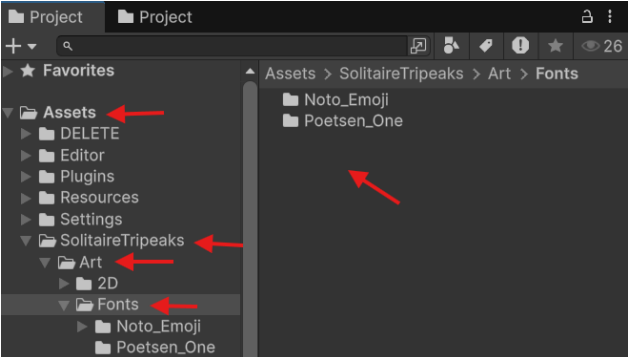
You can create a new folder and place it there. Open Font Asset Creator
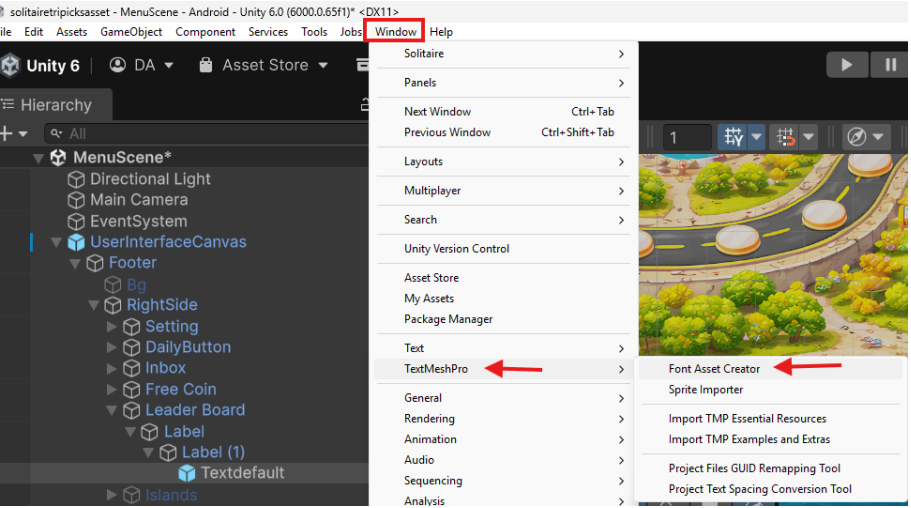
When the window appears, click on Source Font. Drag your
font into this field or search for it and select it, then click
Generate Font Atlas.
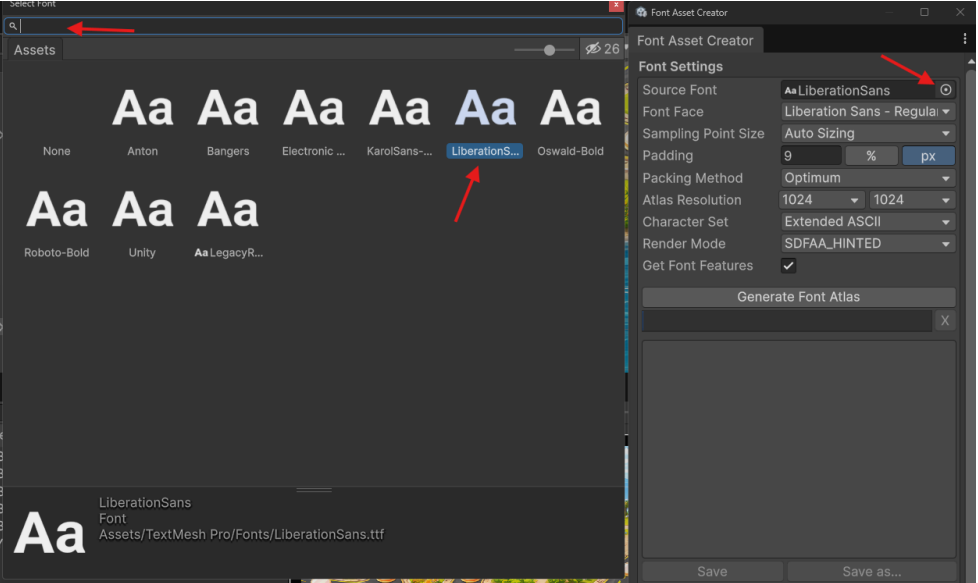
Wait for the font to be generated, then click Save and store it in the Fonts folder.
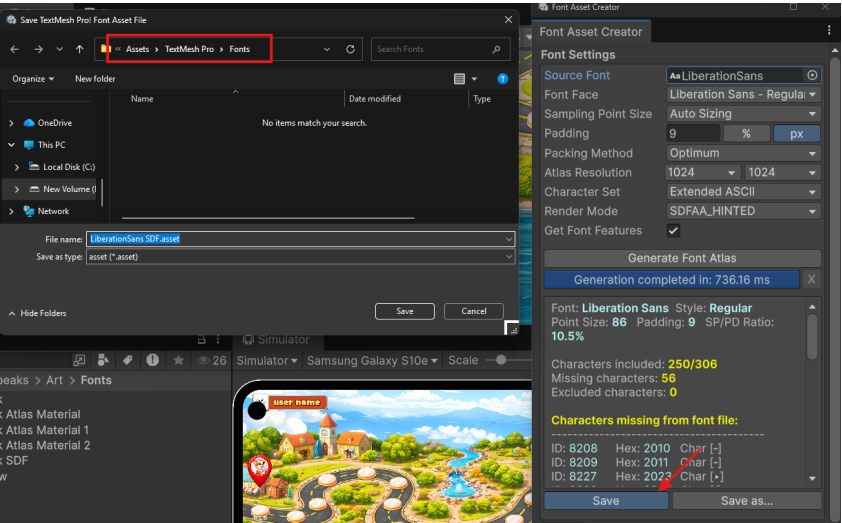
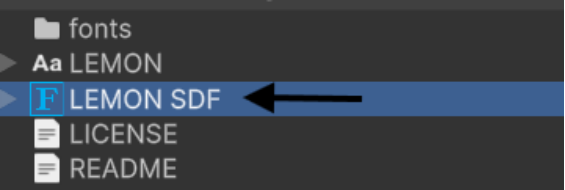
The font has been successfully imported and is ready to use for modifying text on Objects.
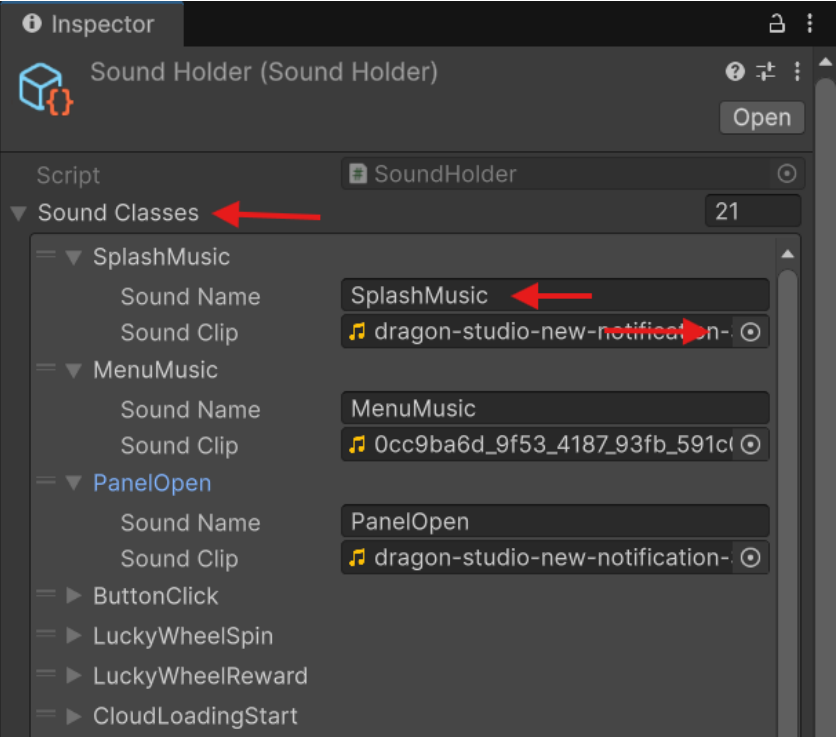
In the Audio Manager, you have everything you need to
configure sound settings , Open it by click on (>) sign
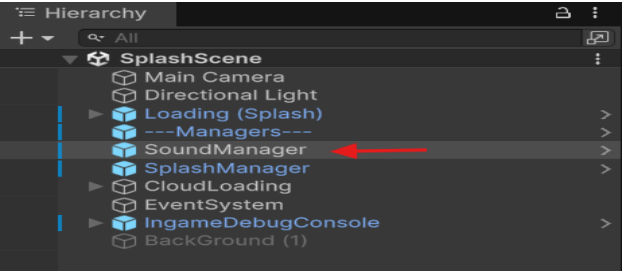
You are now in the Audio Manager prefab, and you can
configure the sounds here
If you click or select sound holder, you will see this window in the Inspector
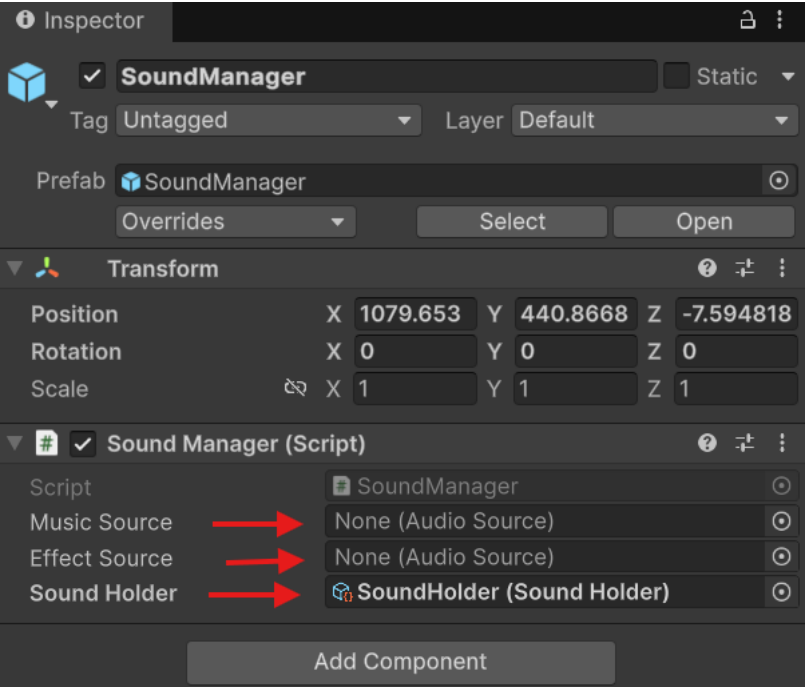
You can change the background music or any music and sound effect.