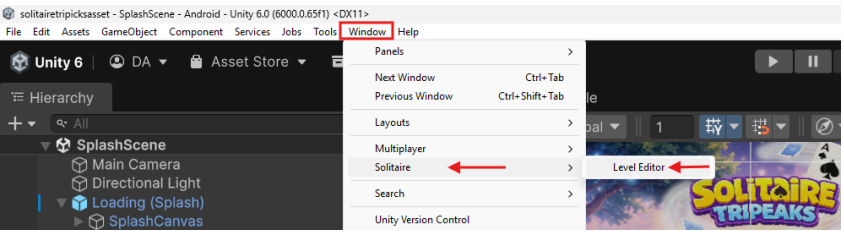
Go to the window then select Solitaire and click on Level Editor
On the left side, you can see the list of levels. Select any level you want to edit or preview.
On the right side, you will find the Band Cards section, where you can view and adjust the number of cards assigned to the level. These cards are transferred to the in-game bank cards during gameplay.
Below the level number, there is a checkbox that allows you to enable or disable additional gameplay details and configurations for that level.
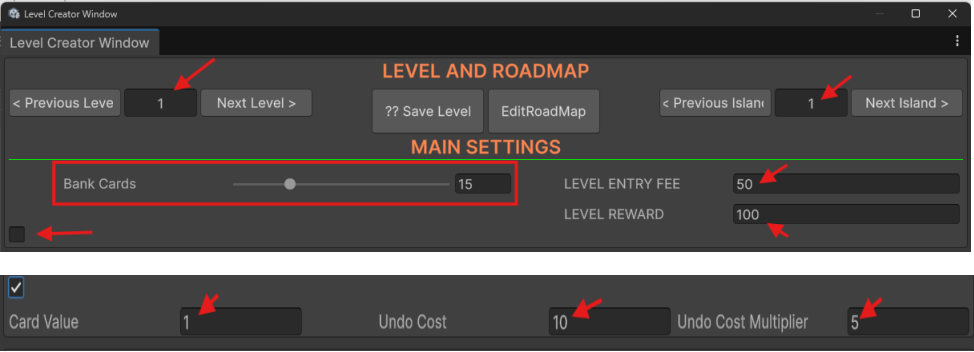
Level Entry – Set the requirements or conditions needed to start the level (such as coins, lives, or other entry conditions).
Level Reward – Define the rewards the player receives after successfully completing the level.
Left-click to select a card and place it in the deck. You can
position the card at different locations and adjust its angle using the mouse scroll wheel.
All number of placed cards will be displayed on the right side.

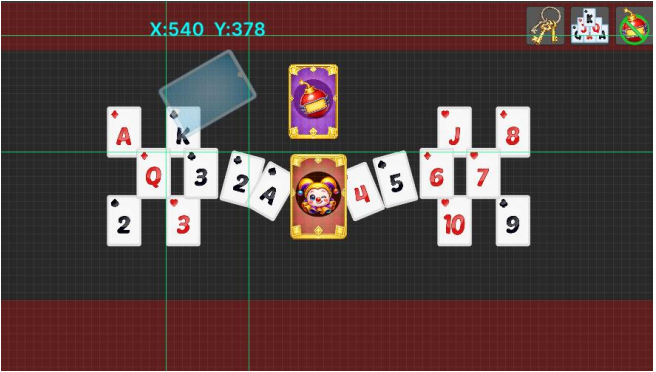
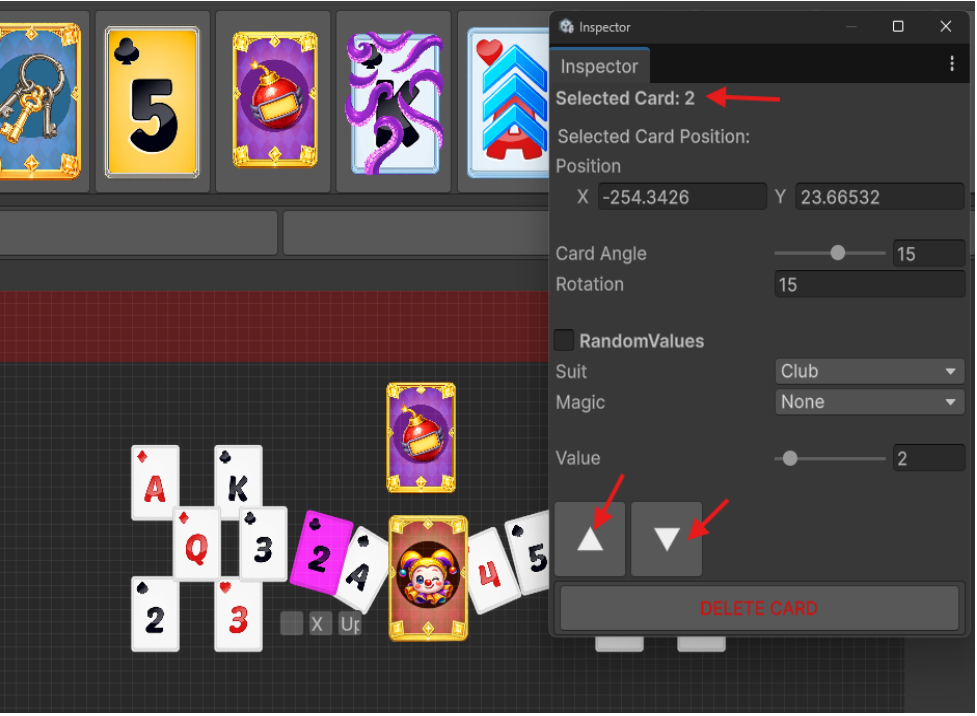
Right-click on a card to edit its details and modify its properties.
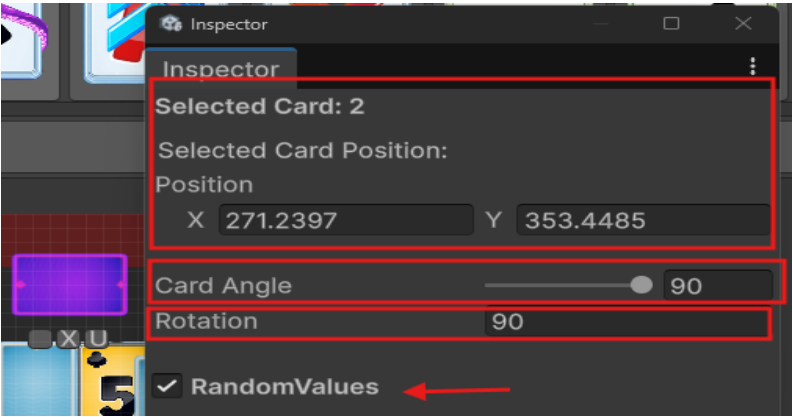
In this section, you can adjust the card’s position, rotation, and angle to fit your desired layout.
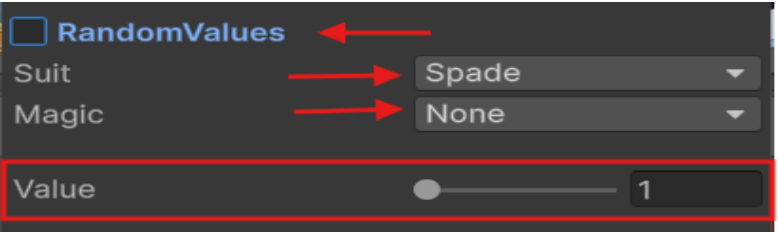
You also have the option to make the card use a random value. If you disable this option, you can manually specify the exact value and details for the card.
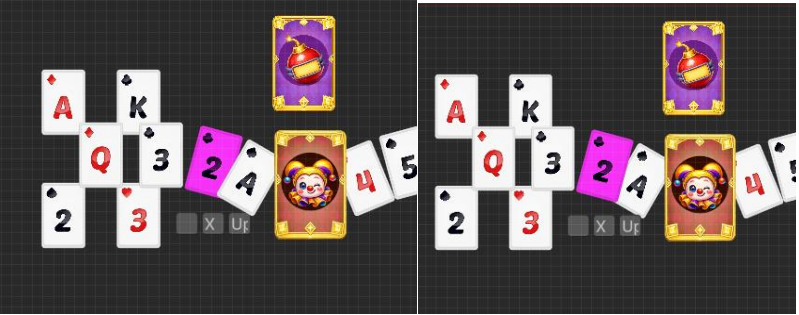
You can change the card sorting method using two buttons, allowing you to switch between different card arrangements easily.
Important Note
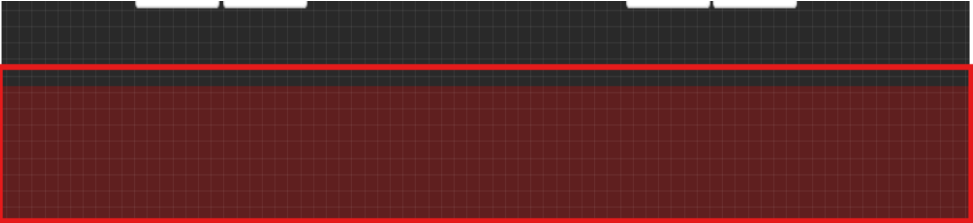
You should not place cards in the red area. The safe area is the gray zone, where the deck is displayed. Please keep all card placement within the gray area to avoid layout issues.
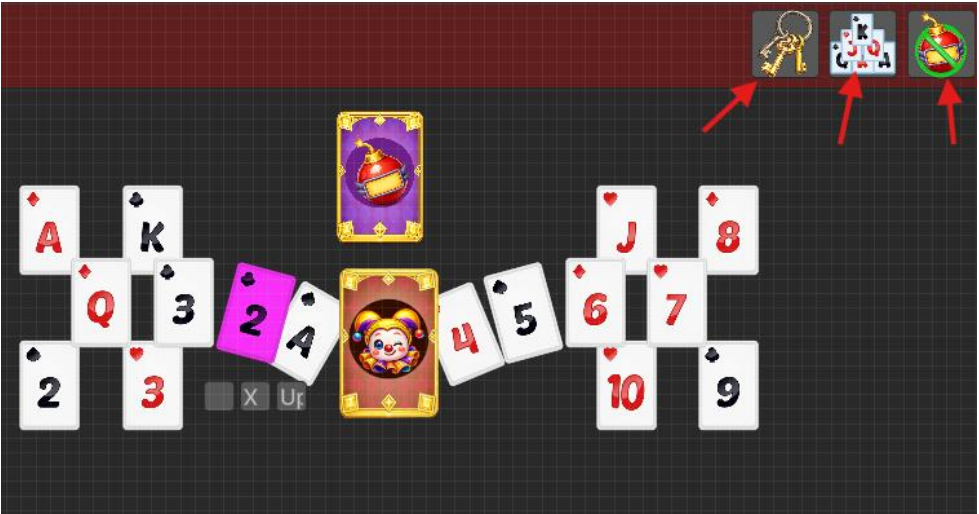
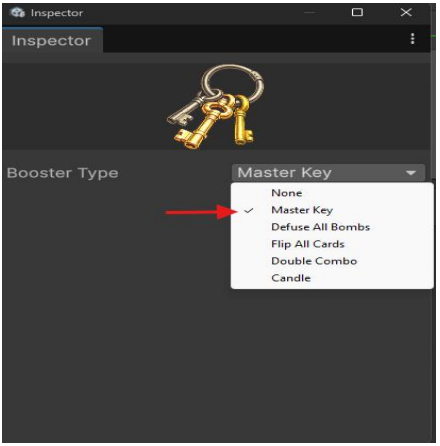
You can also change and customize the boosters from the top section of the screen, allowing you to quickly adjust gameplay elements and player abilities.
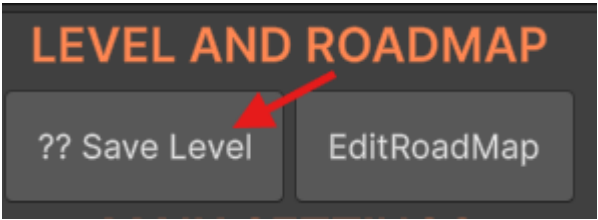
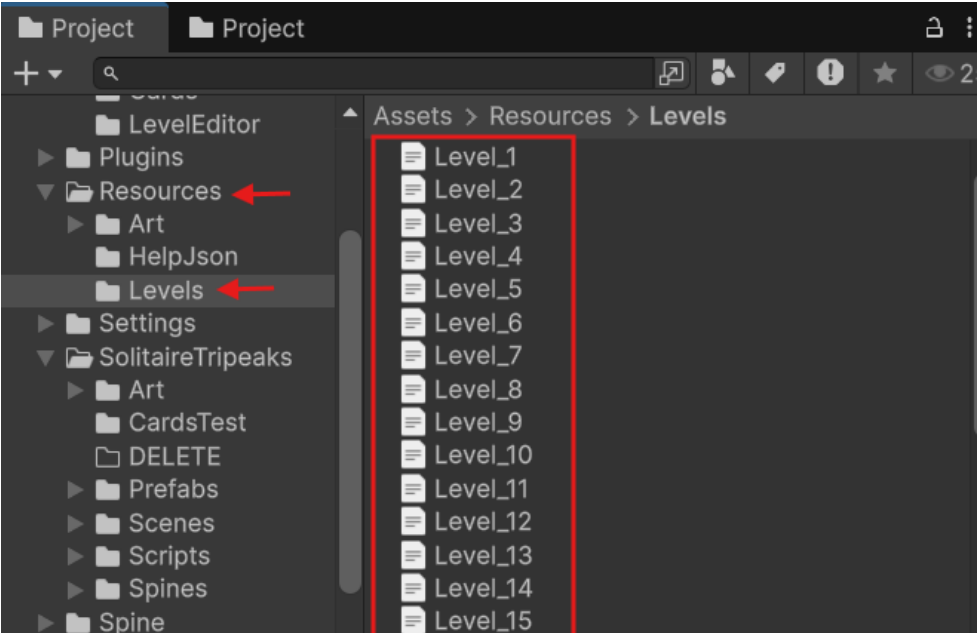
All created and edited levels are saved in this section. Make sure to save your changes to ensure that your level data is properly stored and available for use in the game.
Note: Use the Level Editor as much as possible to edit levels; this is the better way to do it.