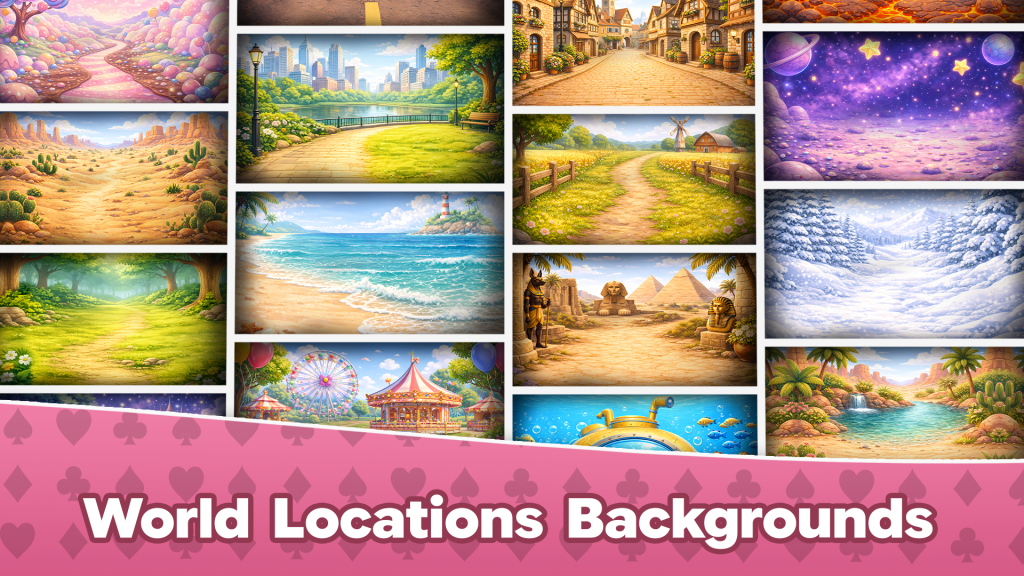
In this section, you can create and manage islands using
Scriptable Objects. This system allows you to easily add new islands, organize their data, and customize their visuals and progression without modifying core game code.
Search for IslandArtHolder in project folder
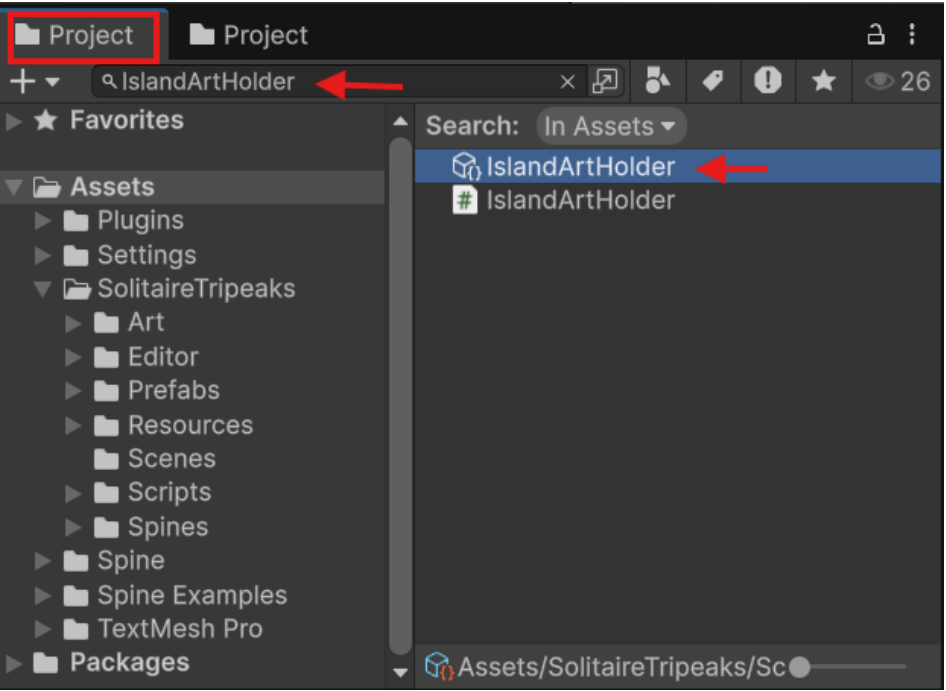
Click on the ScriptableObject asset to view and edit its settings in the Inspector, as shown in the image below.
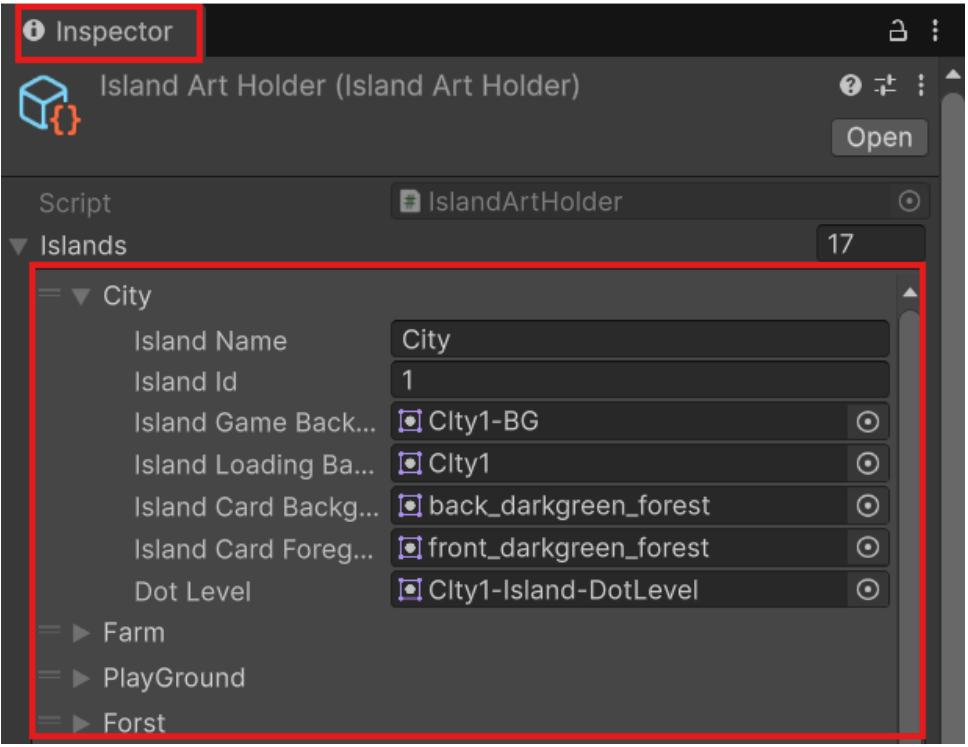
Island Settings Explained
Island Name – Set the display name of the island.
- Island ID – Assign a unique identifier for the island. This
value must be specific and not duplicated. - Island Game Background – The background shown during gameplay (the deck/game field background).
- Island Loading Background – The background displayed while loading the island level.
- Island Card Background – The design shown on cards
before they are revealed. - Island Card Foreground – The design shown on cards after they are revealed.
- Dot Level – The background used for the level dots
displayed on the world/road map for each level. - Island Music – Each island can have its own background music, which will play throughout its levels until the island is completed.
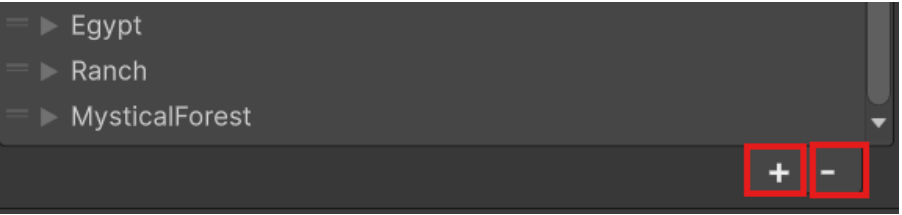
Adding & Removing Islands
You can manage islands directly from the list:
- Click the “+” button to add a new island.
- Click the “–” button to remove an existing island.
Matching IDs (Important!)
One small detail that can save you from big headaches later. The ID in your Scriptable Object must be exactly the same as the ID in the Road Map Editor object.
Why this matters:
These IDs are used to link your data together. If they don’t match, the system won’t recognize the connection — and things might not show or work correctly in your level map.
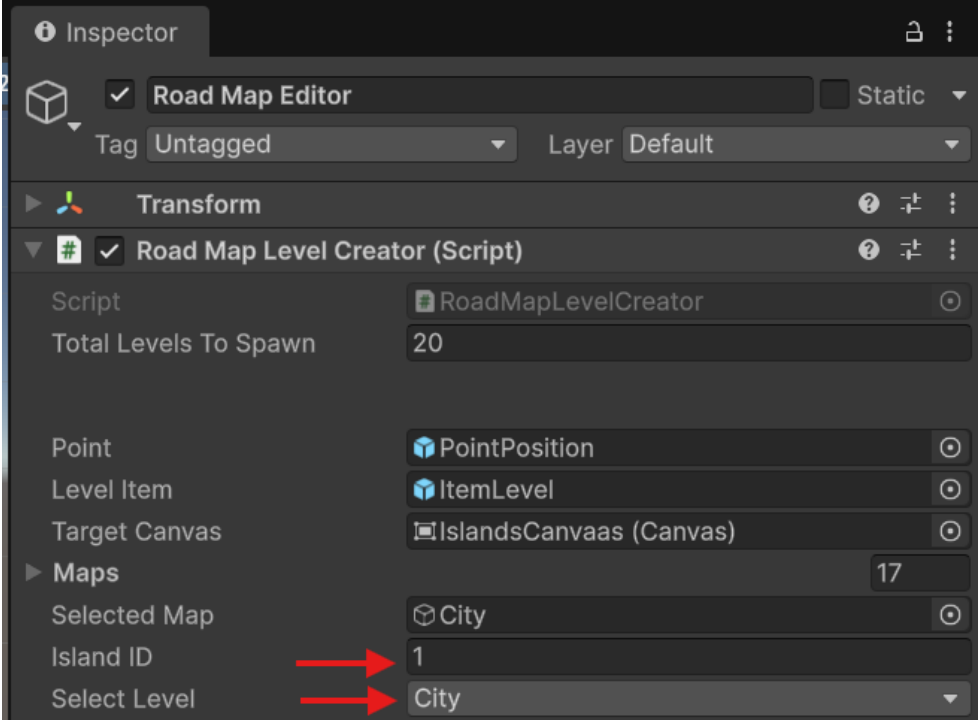
Road Map Editor ID → 1 => City
Scriptable Object ID → 1 => City