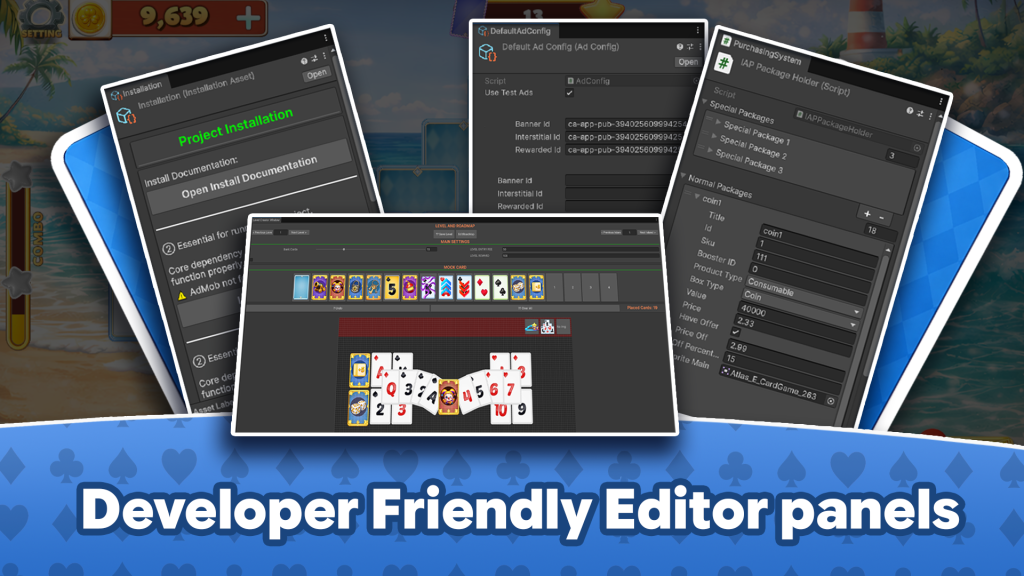
Open Unity (see the version on the asset store product page)
Create a new 2D project

Click on new project (blue icon)
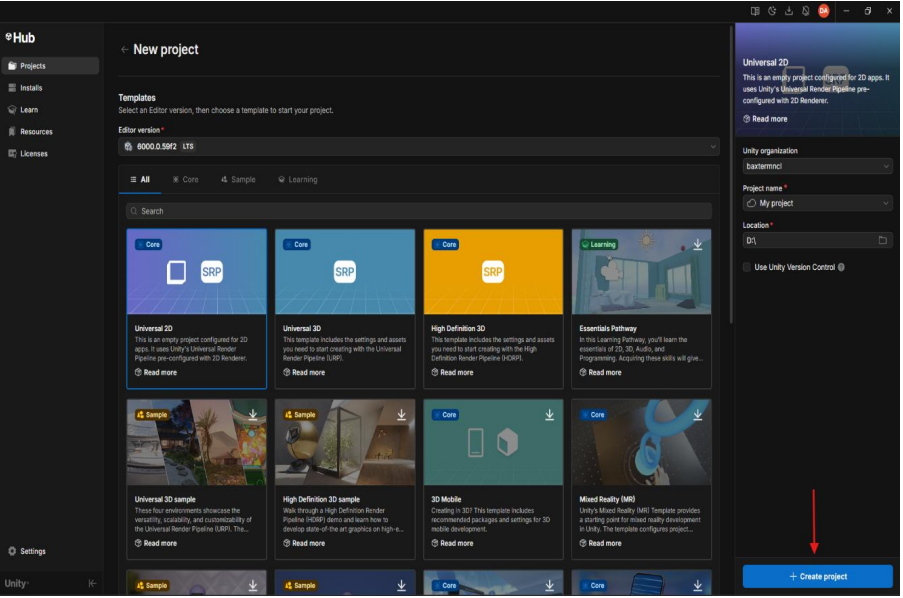
Fill the information and select a 2D project then click on
create project button
Go to asset store web
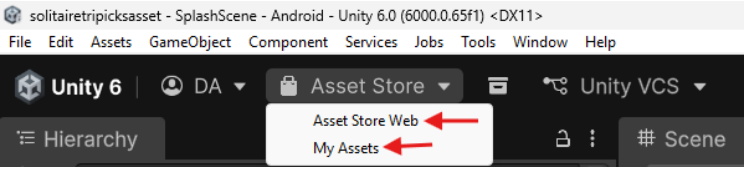
search for the asset and download it. return to the
editor and click on my assets, the asset will appear in this section, and you can import it from there.
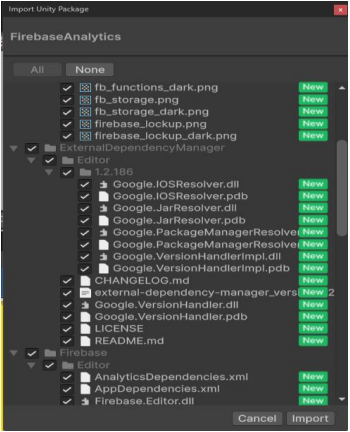
For example: you will see a popup like this. Here, you can
choose which files you want to include in the project. After
that click import
If you encounter any issues, please contact our support team.
The first time you open the project, you’ll see the installation window to help set everything up.
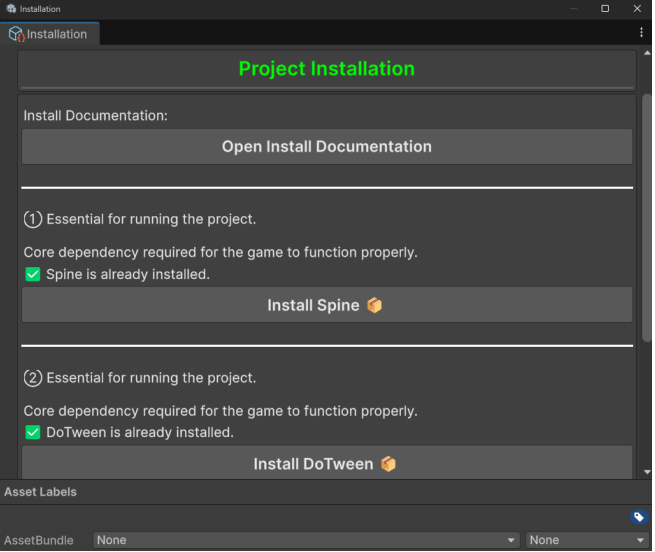
To get everything ready, we need to install some required
packages!!!!!
Click Install Spine to add the Spine runtime to your project.
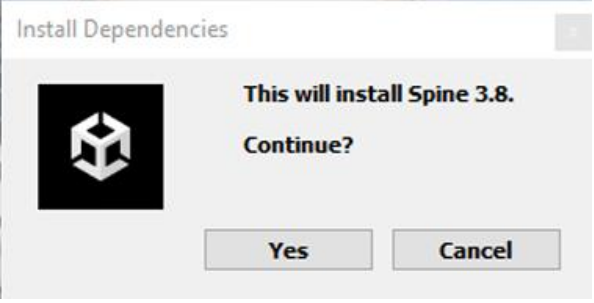
Please confirm the installation by clicking yes.
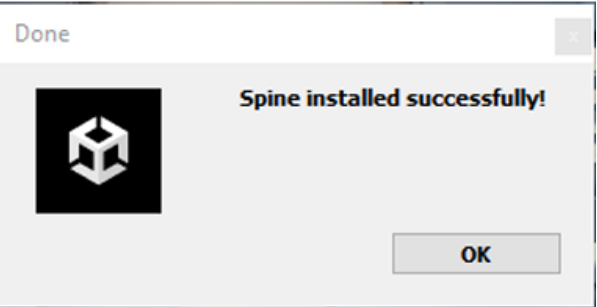
Please wait while Unity downloads the package and recompiles the scripts. When done, you’ll see a Spine installation complete message — press OK to continue.
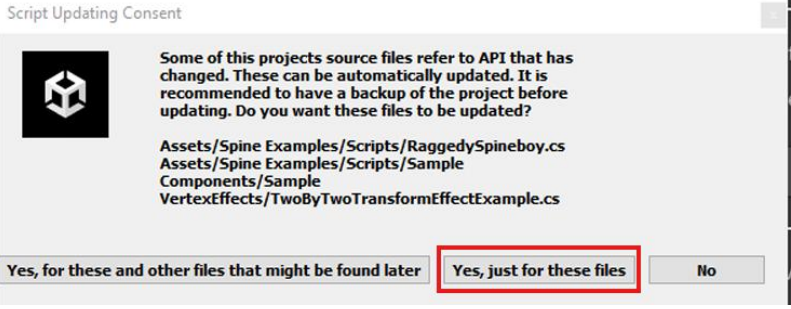
You might see a message about outdated scripts — that’s okay, we don’t use those. Simply select “Yes, just for these files” to let Unity update them.
You’ll now see “Spine is already installed” in the installation window — that means you’re good to go!
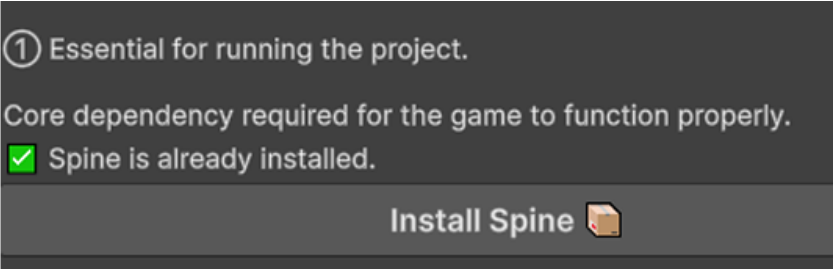
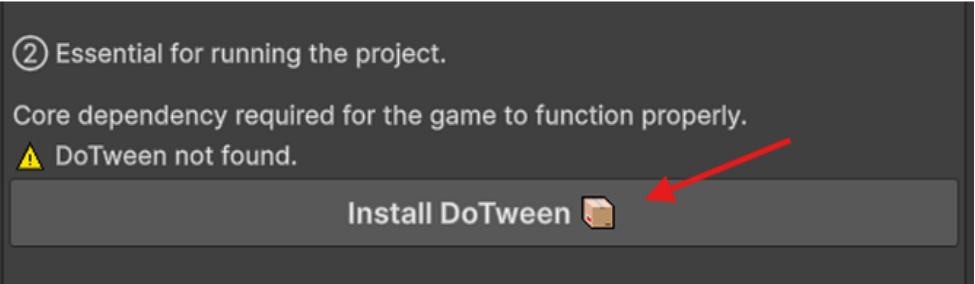
If clicking “Install DOTween” opens the Asset Store page, simply click Add to My Assets. Once the download is complete, click Open in Unity, then import the package. Otherwise follow the steps described below.
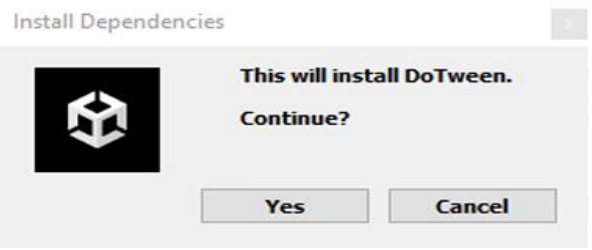
Please confirm the installation by clicking Yes.
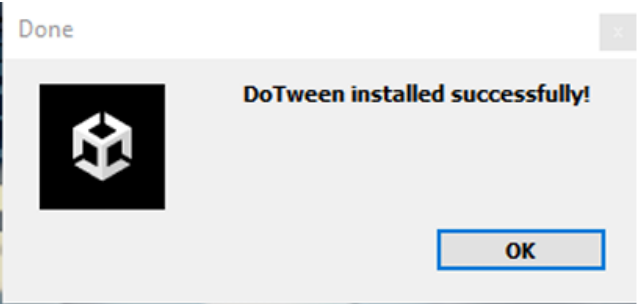
Please wait while Unity downloads the package and recompiles the scripts. When done, you’ll see a DoTween installation complete message — press OK to continue.
Once Unity finishes compiling, the DOTween Setup window will appear. Click “Open DOTween Utility Panel” to get started.
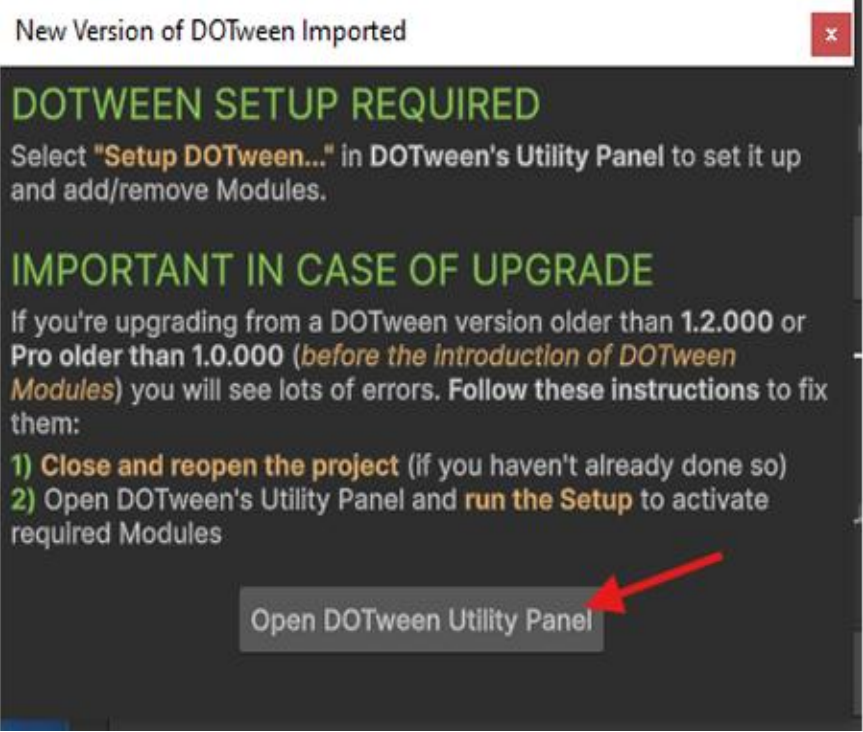
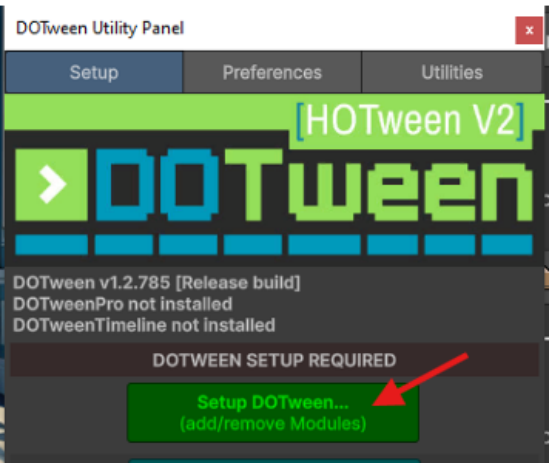
In the DOTween window, select “Setup DOTween”
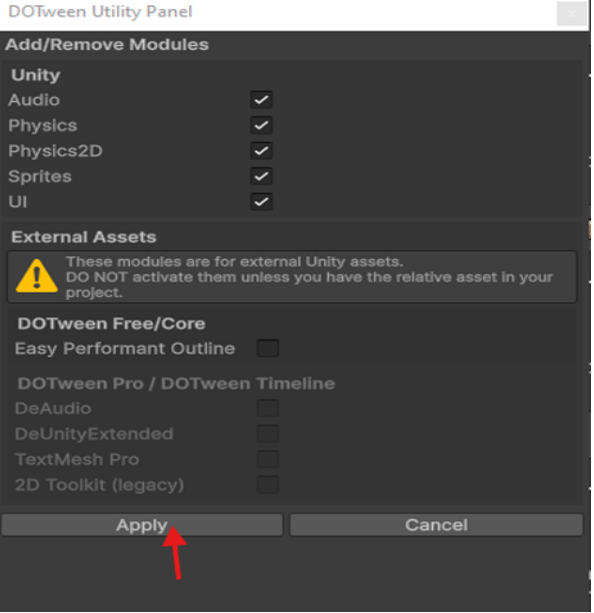
This process may take a few moments while Unity recompiles the scripts. Once compilation is complete, click Apply to finish the setup.
You can close the DOTween Utility Panel.
Click Finish Setup and wait until the status icon turns green and displays “Setup Finished”. This indicates that the setup process has been completed successfully.
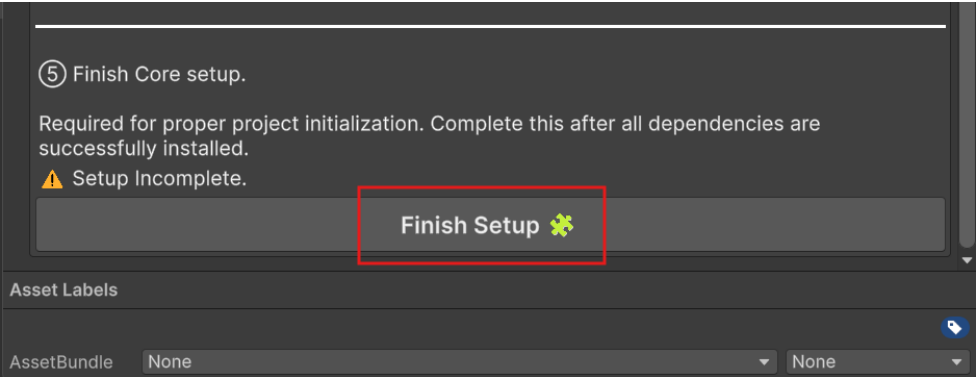
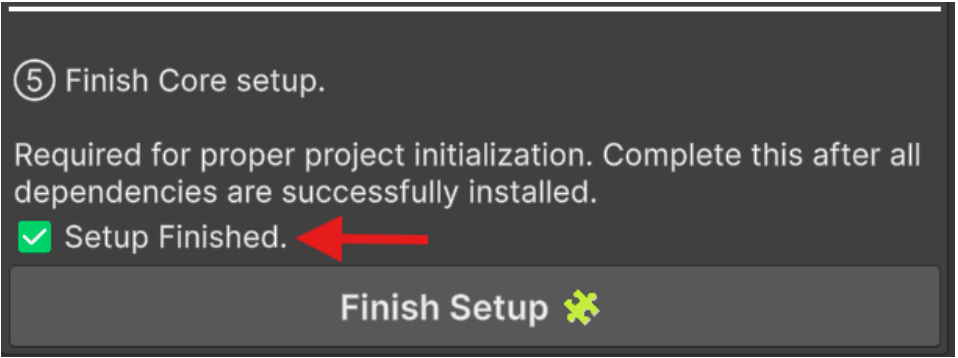
Everything is set up, and you’re ready to play and build the
project.
All steps can be completed manually. Here are some helpful links to get you started if you prefer to do it yourself.
- Spine v3.8: https://en.esotericsoftware.com/spine-unitydownload
- DoTween: DOTween (HOTween v2) | Animation Tools | Unity Asset Store